Tuesday, June 17, 2014

SQL 2012 Upgrade - "Rule 'Previous Upgrade' failed." Error

SQL upgrade to SQL 2012 had failed at the first attempt and it gives error- "Rule 'Previous Upgrade' failed. A previous upgrade that failed was detected. To retry the upgrade, remove the upgraded feature that failed, and then run the upgrade again."  -on re-attempt.

Fix-1 - correct and the best way


1) Open a command prompt and navigate to 2012 install directory
For me it is D:\SQL2012Sp1\
2) Run the command “setup.exe /Action:RunDiscovery” as per the screenshot below


3) It opens the report in a web page like the one below

4) So here it shows
Database Engine Services = Version 11.0.2100.60
Full-Text and Semantic Extractions for Search = Version 11.0.2100.60
Installed but same time they do exist in Windows 2008 also because last upgrade failed.

So we need to un-install these two before we attempt to upgrade Windows 2008 again.
You can do it via below mentioned commands or using the GUI un-install window.

5) Setup.exe /Action=Uninstall /Instanceid=MSSQL11.MSSQLSERVER /Features=SQL /Q
Make sure that you change /Incanceid and /Features based on your Discovery Report.
In the command above command “/Features  = SQL” will remove Engine, Replication, Full Text and Data Quality this is what I had to run as Database Engine and Full-Text Search are the once listed in my Discovery Report.
You can use like “/FEATURES=SQL,AS,RS,IS,Tools” if you also have SSAS, SSRS, SSIS or SQL Tools listed in the discovery report.
6) Once it is removed, run the discovery report again to make sure that the 2012 features are completely removed and run the upgrade again.

Fix-2 (If Fix 1 is't helpful)


Here is what you have to do

1) Open Regedit
2) Navigate to HKEY_LOCAL_MACHINE\SOFTWARE\Microsoft\Windows\CurrentVersion\Uninstall
3) Check though the Keys and look for "SQL Server 2012 Database Engine Service"

4) Once found, match "DisplayVersion" and "InstanceId" with the discovery report to double check.
5) Once that's confirmed, open "ModifyPath" and copy the value to a note pad


6) Add /X in the string
Note: /X is for uninstall
7) Open a command prompt and run the command
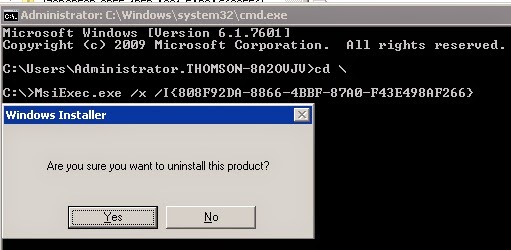


8) Yes to confirm and uninstall the product.

I my example, have to uninstall Full-Text Search also so,

1) Refresh the regedit screen and you will not be able to see "SQL Server 2012 Database Engine Service" now
2) I have to look for "SQL Server 2012 Full text search" and i found it here


3) I have copied the Modify path and ran the uninstall command with /X switch to uninstall Full Text search also.

That's it!
Now we should be able to run 2012 upgrade again.

Good Luck!
R.Hari.

Tuesday, May 20, 2014

vCenter / Simple install errors when using SQL Server

Error: Database connection has failed.  You can refer to the vm-sso-javaLib.log in the system temporary folder for more information.

You may get the above error when you fill in details on "Database Information" screen and click on next


Issue is actually with the Single Sign On Database. Installer is expecting a database to be present with few table structures in it. It is stated in the instillation wizard if you go one step back!

So what you need to do is
1) do to the install location (DVD or the local copy)
2) Navigate to Single Sign On\DBScripts\SSOServer\schema\mssql (or to the right database folder if you are using databases other than SQL)
3) SKIP THIS STEP IF SQL IS INSTALLED ON THE SAME SERVER === Copy files "rsaIMSLiteMSSQLSetupTablespaces.sql" and 
"rsaIMSLiteMSSQLSetupUsers.sql" to the server running SQL Database4) Open "SQL Management Studio"
5) Double Click and open 
"rsaIMSLiteMSSQLSetupTablespaces.sql". It will get opened in SQL Management Studio.
6) Edit the file location for .mdf and .ldf file locations and execute the script.
7) Once completed, open 
"rsaIMSLiteMSSQLSetupUsers.sql" the same way8) Edit Passwords (better to keep the user names default as RSA_USER and RSA_DBA, just change the passwors) and execute this one too.

Once this two steps are completed,  the SSO installation should be able to proceed without any issues.

===========================================================

Error: The specified user does not have sufficient privileges.  Refer to Installation and Setup guide for more details on the privilege requirements.


Take a close look at the configurations and makesure that you haven't swapped DataBase User and DataBase DBA User credentials! :) 


Sunday, July 7, 2013

Ctrl + Alt + Del in Remote Desktop


To send the Ctrl + Alt + Del keystroke combination on RDP Session (Remote Desktop),
=you need to use Ctrl + Alt + End
 

To send the Ctrl + Alt + Del keystroke combination on VMware Console Session,
= you can either go to ‘VM’ menu -> ‘Guest’ -> Send ‘Ctrl + Alt + Del’
or
= press Ctrl + Alt + Insert


Thursday, February 28, 2013

Windows 2008 & 2008 R2 Task Sheduler Error 2147943712

An error has occurred for task. Error message : The following error was reported: 2147943712


=========================================================================
Fix

1. Click Start, click Run,
2. Type secpol.msc and then click OK.
2. Under Computer Configuration -> Windows Settings -> Security Settings -> Local Policies Click on Security Options.
3. In the Policy pane, right-click Network access: Do not allow storage of credentials or .NET Passports for network authentication, click Properties, click to select Disabled, and then click OK.
4. Click Start, click Run,
5. Type "Gpupdate /force" with out quots and then click OK.
 

SQL 2005 Cluster Full Text Search Resource erorr


Generic service 'SQL Server Fulltext (MSSQL2K5)' could not be brought online (with error '1075') during an attempt to start the service.  Possible cause: the specified service parameters might be invalid.

=======================================================================
Fix1
1) Assuming that Node A is now active and Node B is passive
2) Install SP4 on Node A (Active Node First) and reboot it. Resources will fail over to Node B now.
3) One Node A comes back, move resources to Node A, and then install SP4 on Node B and reboot.
4) Once it comes back, check if the issue is resolved.
5) If not Follow Fix2

Fix2
1) Assuming Node A is Active, Open Regedit on Node B (Passive Node)  and follow below mentioned Reg Changes (Screenshot below)
Key: HKEY_LOCAL_MACHINE\SYSTEM\CurrentControlSet\Services\MSFTESQL$InstanceName\
Multi-String Value: DependsOnService
Value Changed from …
NTLMSSP
RPCSS

to
RPCSS
(Delete NTLMSSP)

2) Restart Node B
3) Once Node B comes back, Fail Over resources to Node B and try to start the Full Test Search Cluster resource. You should be able to start it now.
4) Do the Same Reg Change in NodeA (Passive now) and reboot that too 


R.hari

SQL 2005 Integration Service Installation Error

Failed to install and configure assemblies C:\Program Files\Microsoft SQL Server\90\DTS\Tasks\Microsoft.SqlServer.MSMQTask.dll in the COM+ catalog. Error: -xxxxx
Error message: Unspecified error
Error HRESULT E_FAIL has been returned from a call to a COM component
 
 
--------------------------------------------------------------------------------------------------------------------------
 
Fix
 
If you  getting this error in between installing a cluster, you can skip it and install SSIS on the node where you are getting
 
On the node where you have issue -
 
1) Deleting MSMQTask COM+ Components from Component Services:
- Open: Start\Programs\Administrative Tools\Components Services,
- Expand "Component Services" -> "My Computer" -> "COM+ Applications",
- You'll see "Microsoft.SqlServer.MSMQTask" component. Right click on it and Delete it.
- If that dialog box is open which poped up during SQL Server Setup then click Retry, otherwise start over and this problem will be gone.
Try to restart the installation
 
2) If that dosent work - ignore the error and install SSIS
3) Reboot Server
4) Once it comes back, un-install SSIS
5) Reboot the Server
6) Install SSIS again this time it shoud get installed with out issues!
 
R.hari

SQL 2005 Cluster Installation Issue on Windows 2008 R2 Failover Clueter

SQLSetup0012_XXXX_Core(Local) Error
Error: Action "InstallDTSAction.11" failed during execution.  Error information reported during run:
Action: "InstallDTSAction.11" will be marked as failed due to the following condition:
Condition "Package "11" either passed when it was last installed, or it has not been executed yet" returned false. Condition context:
Prereq package will be failed due to the previous installation attempt returning: 1602
Installation of package: "sqlsupport"  failed due to a precondition.

SQLSetup0012_XXXX_Core Error
Error: Action "LaunchLocalBootstrapAction" threw an exception during execution.  Error information reported during run:
"C:\Program Files\Microsoft SQL Server\90\Setup Bootstrap\setup.exe" finished and returned: 1602
Aborting queue processing as nested installer has completed
Message pump returning: 1602

=========================================================================

Fix

1. Make sure task scheduler service is running on Remote Server
2. Make sure Remote registry service is runnning on Remote Server
3. Try if you can access \\<RemoteServerHostname>\C$ and \\<RemoteServerHostname>\Admin$

and if all looks good login to remote computer

1. Click Start, click Run,
2. Type secpol.msc and then click OK.
2. Under Computer Configuration -> Windows Settings -> Security Settings ->  Local Policies Click on Security Options.
3. In the Policy pane, right-click Network access: Do not allow storage of credentials or .NET Passports for network authentication, click Properties, click to select Disabled, and then click OK.
4. Click Start, click Run,
5. Type "Gpupdate /force" with out quots and then click OK.


R.hari